We all debug. It's easy enough.. hit F12, find a script where breakpoint is needed, set it and wait when JS execution will pause where the breakpoint is set. Wouldn't it be nice though if you could specify directly in the source code when the debugger should pause exactly as the breakpoint does? Well, thank you lucky stars that if you are using Chrome all you need is debugger function. So given code:
// some amazing JS here
debugger; // program will pause here, that's the breakpoint
// even more amazing JS
If dev. tools panel is open this will pause execution at the point where debugger call is. Pretty useful if you ask me.
Thursday, February 6, 2014

Wednesday, February 5, 2014
Pure ASCII awesomeness
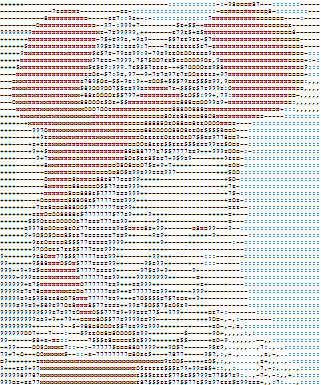
If you are old enough you might remember how ASCII characters where used to generate images. Non-geeks will say "ehh...I like jpg better", but if you anything like me you will fully appreciate ASCII art awesomeness. I googled this generator, uploaded photo of my lovely daughter and screenshot of result is below. It sure brings back memories of times when 8bit computers ruled.
No more Notepad++! Sublime Text all the way!
You know when a kid gets a new toy and is so excited that wants everyone know how cool the toy is? Well I feel like that kid today as found new tool that some of you might already know about.
Ok, as most of the work I do is JavaScript with usual mixture of HTML and CSS I tend to stick with simple tools. Set of web browsers, Git and text editor. Originally, years back I used Homesite (when it was still owned by Allaire). Then I switched to Notepad++ and been using it till today. Its simple enough, allows easy duplicating lines, folding etc. With a bit of configuration I was able to get it the way I like it. Using plugins you can compare files and it provides most of the basic functionality you would expect from simple text editor. It's far from perfect though and many times got on my nerves and e.g. folding I mentioned gets confused sometimes and N++ got few other glitches.
Every now and then I look up new tools. It's been few years with Notepad++ and thought I should give something new a try. Once my favourite, Homesite officially is dead and buried now. I still cannot believe that even though it wasn't improved since a decade or so Adobe was still charging money for it. Luckily I came across Sublime Text 3. I Downloaded the thing, installed and got totally blown away. All basic editing features that I constantly use are in there. Duplicate line by CTRL+SHIFT+D instead of CTRL+D as in Notepad++. Installing new plugins (they call it packages in ST3) is a breeze and in few minutes I had SASS support, Git and all ready to work. And the best thing is you configure everything by modifying JSON structures in config files. How simple is that??
Long story short Notepad++ compares to Sublime Text 3 like chariot to Merc C63. If you are still one of those unfortunate souls that code with Notepad++, you really should give Sublime Text 3 a try. For me there is no going back, not any time soon anyway. This thing really puts smile on my face and if you haven't already, you can download this gem from http://www.sublimetext.com/3.
Wednesday, January 29, 2014
Extending Javascript Array
It's surprising to some that Javascript has all sort of methods to manipulate Arrays but none of these (in current specs.) allows to quickly find Max/Min values stored in array. Sometimes its tempting to quickly extend native JS Array. So having array e.g.:
var beersDrunk=[22,33,44,32,1];
We trying to find max value stored in this array. One option is to add (static) max() method to Array below:
Array.max=function(v) {
return Math.max.apply(this,v);
};
This will allow us to call:
Array.max(beersDrunk); // returns 44
Or other way you can define max() on Array's prototype as:
Array.prototype.max=function() {
return Math.max.apply(this,this);
};
This allows you to call max() method directly on the Array's object itself e.g.:
beersDrunk.max(); // returns 44
If you think "cool, lets use it in my code!" beware.., its not bulletproof method and has obvious problems. It will fail (return NaN) if array contains anything else then numbers e.g. [22,"boom",44,32,1], its not the fastest way to look up Max/Min values etc. etc. Probably the worst however is that monkey patching like this breaks encapsulation. Imagine if at some point ECMAScript committee decides to add max() method to Javascript Array. Your implementation will override theirs and booom, this might cause serious problems. Extending array's prototype will also give you more headaches if you are using (dont!) for in to iterate over arrays. This is a huge topic and luckily for all of us there are ton's of resources all over the web on problems of extending native Javascript objects. It might be worth googling the topic if you decide to use this method in your code.
Despite all the problems it is interesting method nonetheless. If nothing else, being able to understand how the code above works will make you a better programmer.
Monday, January 6, 2014
Dynamically injecting elements into existing SVG
It might happen that when dealing with SVG in HTML page you will need to inject certain SVG tags somewhere inside of existing SVG element. It might seems straightforward and one would think that standard JS document.createElement will do the trick. Well, not quite... Yes, it will insert element into DOM and when inspected the element will be there as it should, however the SVG displayed will not change. Consider the code below with single SVG element with image. We will try to add mask to it:
HTML:
<svg height="600" version="1.1" width="800" xmlns="http://www.w3.org/2000/svg" style="overflow: hidden; position: relative;">
<image x="50" y="50" width="120" height="120" preserveAspectRatio="none" xlink:href="https://lh3.googleusercontent.com/-0afLqDT73Yk/AAAAAAAAAAI/AAAAAAAAAH0/wf_rwvjAuOY/s120-c/photo.jpg" style="-webkit-tap-highlight-color: rgba(0, 0, 0, 0);" fill="#008000" mask="url(#mask)"></image>
</svg>
JavaScript where we injecting <mask ...> tag into HTML above:
// create two elements
var mask = document.createElement('mask');
var circle = document.createElement('circle');
// apply attributes and what not
mask.setAttribute("maskUnits","objectBoundingBox");
mask.setAttribute("maskContentUnits","objectBoundingBox");
mask.setAttribute("id", "mask");
mask.setAttribute("x", "0");
mask.setAttribute("y", "0");
mask.setAttribute("width", "1");
mask.setAttribute("height", "1");
circle.setAttribute("cx", "0.5");
circle.setAttribute("cy", "0.5");
circle.setAttribute("r", "0.5");
circle.setAttribute("fill", "white");
mask.appendChild(circle);
document.getElementsByTagName("svg")[0].appendChild(mask);
The code above will inject <mask ...> and <circle...> tags into DOM but the mask will have no effect. One dirty method is to remove SVG element from DOM and insert it again e.g. with jQuery call $("#elementId").html($("#elementId").html()); but its dirty workaround IMO. The fix to above code is as simple. All needs to be done is to use document.createElementNS rather than document.createElement. Long story short this will create element with specified namespace. If you are a geek then have a look at MDN where createElementNS is documented or if you are true nerd with no girlfriend, thick glasses and nothing better to do check out namespaces in XML. For all the rest looking for quick fix simply have a look at code below. The only difference is document.createElementNS where we need to pass namespace URI as well as element's name we want to create:
var mask = document.createElementNS("http://www.w3.org/2000/svg", 'mask');
var circle = document.createElementNS("http://www.w3.org/2000/svg", 'circle');
circle.setAttribute("cx", "0.5");
circle.setAttribute("cy", "0.5");
circle.setAttribute("r", "0.5");
circle.setAttribute("fill", "white");
mask.setAttribute("maskUnits","objectBoundingBox");
mask.setAttribute("maskContentUnits","objectBoundingBox");
mask.setAttribute("id", "mask");
mask.setAttribute("x", "0");
mask.setAttribute("y", "0");
mask.setAttribute("width", "1");
mask.setAttribute("height", "1");
mask.appendChild(circle);
document.getElementsByTagName("svg")[0].appendChild(mask);
I hope above will save someone trouble of googling this stuff any further. Oy yeh, no need to copy/paste this stuff, fiddle is here.
Monday, December 16, 2013
What is this undefined thing??
There is a lot of confusion around undefined in Javascript. It seems that many of the developers do checks for undefined without fully understanding what exactly is going on. I think that confusion comes from the fact that undefined is one of the primitive datatypes Javascript comes with, but it's also a property on host object (window in browser environment). So if you imagine:
window.location
which you probably are familiar with, the location is property on window object. This will return location object when accessed. undefined is also a property on window object and its perfectly legal to call:
window.undefined
or in modern browsers:
window.hasOwnProperty(undefined)
When accessed this window.undefined property will return undefined primitive.
It will not return an Object, it will not return a string or a number or boolean which are Javascript datatypes that you are probably familiar with. This property will return primitive undefined that along with string, boolean etc. is simply one of the datatypes that Javascript comes with.
So few examples. What happens when I do check as below?
if(someVar===undefined) {}
someVar is compared against window.undefined property. As this is simply a property on window object it might contain anything really, not necessarily undefined. Imagine someone evil putting this somewhere in a code:
window.undefined=123;
Bad things will happen, people will get fired and projects will be late and anyone without understanding of undefined will be screwed. Now, I might get jumped in here by some developers who actually prefer above syntax over typeof someVar==="undefined". As this is uncommon to reassign undefined property, IMO its fine to use either as long as you understand what is happening (this includes understanding why === is used rather than ==).
Good news is that in modern browsers with ECMAScript 5 this property is read only, however it's still possible to screw thiongs up for everyone involved with:
(function() {
var undefined=66;
alert(undefined); // will output 66
})()
Ok, another example. Truly silly code ever popular nevertheless:
if(someVar==='undefined') {}
So what is happening here? Some poor dummy compares someVar to "undefined" string basically. He might as well do someVar==='Homer likes beer' and get similar result.
So how to check if something is undefined? Most people seem to prefer:
if(typeof someVar==='undefined') {}
Or if you must:
if(someVar===undefined) {}
Given that you understand what is happening.
To sum it up:
1. undefined is a property on host object (window in browser environment)
2. undefined is primitive datatype Javascript comes with. null, string, boolean etc. are other datatypes you probably are familiar with.
3. although unlikely, undefined property can be assigned different value but only truly evil programmers do that. Be aware however, they are among us.
Friday, December 13, 2013
Making sense of Javascript task queues processing
It seems that even seasoned JavaScript developers having trouble understanding how task queues are organised in JavaScript and what the order of tasks execution is. It seems pretty straightforward till you run into situation where it just doesn't make sense. In this post I will try to clarify important details of how task queues are organised. Lets start from beginning and build on examples as we go.
JavaScript is a single threaded language. It basically means that only single block of the code can be run at a time. Program simply runs line by line, through loops, conditionals etc to its end. Sometimes its quick and sometimes it takes long. If so then browser indicates its busy. This in turn often results in "Unresponsive script" sort of popup as below:


Consider this code:
HTML:
<div id="box">nothing here yet</div>
JS:
var box=document.getElementById("box");
for(var i=0;i<10000000;i++) {
box.innerHTML=i;
}
It starts a fairly long loop and inside of the loop div is updated with current value of i. As you will see when the program runs, browser will not respond and will look busy. The div that is being referenced inside of a loop will most likely not show updated value till the loop ends and program exits.
Now, two very important points:
1. If the browser will update the UI and when this is gonna happen depends on browser implementation. Most likely it will happen when the program will run to the end but its totally up to the browser.
2. Browser will not respond to asynchronous events e.g. mouse clicks as long as the single thread of JS code runs. Click all you will, nothing will happen till the very end. Program will not jump to any handler and will keep running till its finished. No magic here, one thread only.
To confirm just that try the code below. This time we added mouse click listener that opens alert when document is clicked.
HTML:
<div id="box">nothing here yet</div>
JS:
var box=document.getElementById("box");
document.onclick=function (e) {
alert("DOH!");
};
for(var i=0;i<10000000;i++) {
box.innerHTML=i;
}
Now, while program runs click somewhere in in the document. None of the browsers respond when the script is busy. So what happens to asynchronous events when single JS thread runs? Are these completely lost? Not to worry.. these are put in a task queue so their callbacks could be executed when currently running JS program reaches its end.
Now imagine that instead of click event some other event occurs e.g. window load event, timeout is fired etc. Each of these would be placed in a task queue.
Ok, this is straightforward stuff so lets take it a bit further and have a look at code below:
HTML:
<div id="box">nothing here yet</div>
JS:
function homerSays() {
alert("hmm.. Doghnuts...");
}
setTimeout(homerSays, 5000);
document.onclick = function () {
alert("DOH!");
}
for (i = 0; i < 1000000; i++) {
box.innerHTML=i;
}
Again it seems straightforward, the result however, depending on a platform you use, will surprise many. It simply schedules function call in around 5 seconds (setTimeout(..)), then attaches listener to click on document and runs fairly long loop.
Now it would seem that when you click the document before 5 seconds has passed it should schedule click event and place it in a task queue. Then after 5 seconds is passed timeout event should fire and should be placed in a queue again, somewhere after earlier click event. One might think its certain that when the program is finished the outcome will be alert with "DOH!" (from click callback) followed by alert with "hmm.. Doghnuts..." (timeout). Once again however this depends on browser implementation. Run the code above in various browsers and see for yourself. E.g. I consistently get different results in Chrome and Firefox.
To see why this is happening lets go line by line and explain details.
When program runs it gets to the line with:
setTimeout(homerSays, 5000);
So what happens now? At this point its extremely important to understand few points:
1. The line schedules event to be fired in 5 seconds from this very point. This is important not to get confused and understand that this will be fired (as close as possible to) 5 seconds from now, NOT from when the execution of JS will finish. Pretty basic stuff yet many gets confused.
2. At this point there is nothing placed into task queue just yet. Event will be placed into a task queue at the time when its fired, so in around 5 seconds from now. Program might be still running by then and event will have to wait in a queue for its execution.
3. Program registers onclick handler and enters a loop.
4. The loop is running now and setTimeout has not fired yet as 5 seconds has not passed. User clicks mouse button. As program is busy and this places click event in a task queue.
5. 5 seconds has passed and timeout fires. This places timeout event in a task queue as well.
6. Loop finishes and alerts pop up on the screen.
Now, lets take Chrome as an example. Surprisingly timeout handler will be executed first, even though that mouse had been clicked before timeout fired.
Why is this happening then? It's happening because browser might maintains more than one task queue. Its important to know that how many task queues for event types are maintained it depends on browser implementation. According to specs it might be one single queue for all event types, or multiple queues, each for specific event type.
For example, a user agent could have one task queue for mouse and key events (the user interaction task source), and another for everything else.
So depending on platform events will be placed all in one or in more specific queues. So what is the big deal you ask? No matter how many queues, these events should be processed in order, right? If click happened before timeout fired it still should be executed before the timeout task? The answer is it depends on browser implementation. Once again specification clarifies that:
The user agent could then give keyboard and mouse events preference over other tasks three quarters of the time, keeping the interface responsive but not starving other task queues, and never processing events from any one task source out of order.
The example above clearly gives different results in different browsers. To sum it up if there are events in different task queues its totally up to a browser to decide which queue should be processed first. Without knowing this its nearly impossible to understand browser behavior at times.
Ok, to sum all the above up in few short points:
1. Only on thread of JavaScript can run at a time. If JavaScript runs and asynchronous even occurs (click, timeout fires etc.) this event is put in a queue.
2. Browser might have one or more task queues. User interaction events e.g. mouse clicks, keypress etc. might go in one queue, timeouts in other and so on. This depends on browser implementation.
3. When JavaScript program runs to its end browser decides which task queue needs to be processed first. This again depends on browser implementation and its easy to get confused when things seem out of order.
JavaScript is a single threaded language. It basically means that only single block of the code can be run at a time. Program simply runs line by line, through loops, conditionals etc to its end. Sometimes its quick and sometimes it takes long. If so then browser indicates its busy. This in turn often results in "Unresponsive script" sort of popup as below:
Consider this code:
HTML:
<div id="box">nothing here yet</div>
JS:
var box=document.getElementById("box");
for(var i=0;i<10000000;i++) {
box.innerHTML=i;
}
It starts a fairly long loop and inside of the loop div is updated with current value of i. As you will see when the program runs, browser will not respond and will look busy. The div that is being referenced inside of a loop will most likely not show updated value till the loop ends and program exits.
Now, two very important points:
1. If the browser will update the UI and when this is gonna happen depends on browser implementation. Most likely it will happen when the program will run to the end but its totally up to the browser.
2. Browser will not respond to asynchronous events e.g. mouse clicks as long as the single thread of JS code runs. Click all you will, nothing will happen till the very end. Program will not jump to any handler and will keep running till its finished. No magic here, one thread only.
To confirm just that try the code below. This time we added mouse click listener that opens alert when document is clicked.
HTML:
<div id="box">nothing here yet</div>
JS:
var box=document.getElementById("box");
document.onclick=function (e) {
alert("DOH!");
};
box.innerHTML=i;
}
Now, while program runs click somewhere in in the document. None of the browsers respond when the script is busy. So what happens to asynchronous events when single JS thread runs? Are these completely lost? Not to worry.. these are put in a task queue so their callbacks could be executed when currently running JS program reaches its end.
Now imagine that instead of click event some other event occurs e.g. window load event, timeout is fired etc. Each of these would be placed in a task queue.
Ok, this is straightforward stuff so lets take it a bit further and have a look at code below:
HTML:
<div id="box">nothing here yet</div>
JS:
function homerSays() {
alert("hmm.. Doghnuts...");
}
setTimeout(homerSays, 5000);
document.onclick = function () {
alert("DOH!");
}
for (i = 0; i < 1000000; i++) {
box.innerHTML=i;
}
Again it seems straightforward, the result however, depending on a platform you use, will surprise many. It simply schedules function call in around 5 seconds (setTimeout(..)), then attaches listener to click on document and runs fairly long loop.
Now it would seem that when you click the document before 5 seconds has passed it should schedule click event and place it in a task queue. Then after 5 seconds is passed timeout event should fire and should be placed in a queue again, somewhere after earlier click event. One might think its certain that when the program is finished the outcome will be alert with "DOH!" (from click callback) followed by alert with "hmm.. Doghnuts..." (timeout). Once again however this depends on browser implementation. Run the code above in various browsers and see for yourself. E.g. I consistently get different results in Chrome and Firefox.
To see why this is happening lets go line by line and explain details.
When program runs it gets to the line with:
setTimeout(homerSays, 5000);
So what happens now? At this point its extremely important to understand few points:
1. The line schedules event to be fired in 5 seconds from this very point. This is important not to get confused and understand that this will be fired (as close as possible to) 5 seconds from now, NOT from when the execution of JS will finish. Pretty basic stuff yet many gets confused.
2. At this point there is nothing placed into task queue just yet. Event will be placed into a task queue at the time when its fired, so in around 5 seconds from now. Program might be still running by then and event will have to wait in a queue for its execution.
3. Program registers onclick handler and enters a loop.
4. The loop is running now and setTimeout has not fired yet as 5 seconds has not passed. User clicks mouse button. As program is busy and this places click event in a task queue.
5. 5 seconds has passed and timeout fires. This places timeout event in a task queue as well.
6. Loop finishes and alerts pop up on the screen.
Now, lets take Chrome as an example. Surprisingly timeout handler will be executed first, even though that mouse had been clicked before timeout fired.
Why is this happening then? It's happening because browser might maintains more than one task queue. Its important to know that how many task queues for event types are maintained it depends on browser implementation. According to specs it might be one single queue for all event types, or multiple queues, each for specific event type.
Specification is pretty clear on it:
For example, a user agent could have one task queue for mouse and key events (the user interaction task source), and another for everything else.
So depending on platform events will be placed all in one or in more specific queues. So what is the big deal you ask? No matter how many queues, these events should be processed in order, right? If click happened before timeout fired it still should be executed before the timeout task? The answer is it depends on browser implementation. Once again specification clarifies that:
The user agent could then give keyboard and mouse events preference over other tasks three quarters of the time, keeping the interface responsive but not starving other task queues, and never processing events from any one task source out of order.
The example above clearly gives different results in different browsers. To sum it up if there are events in different task queues its totally up to a browser to decide which queue should be processed first. Without knowing this its nearly impossible to understand browser behavior at times.
Ok, to sum all the above up in few short points:
1. Only on thread of JavaScript can run at a time. If JavaScript runs and asynchronous even occurs (click, timeout fires etc.) this event is put in a queue.
2. Browser might have one or more task queues. User interaction events e.g. mouse clicks, keypress etc. might go in one queue, timeouts in other and so on. This depends on browser implementation.
3. When JavaScript program runs to its end browser decides which task queue needs to be processed first. This again depends on browser implementation and its easy to get confused when things seem out of order.
Subscribe to:
Posts (Atom)